Many people need to download WhatsApp chats for different reasons — archiving conversations, keeping business records, analyzing messages, or saving important discussions.
However, WhatsApp does not provide a simple way to export WhatsApp chats in structured formats like CSV or Excel directly from WhatsApp Web. The built-in export feature on mobile devices is also limited and not ideal for large conversations.
In this guide, we will explain how to download WhatsApp chats from WhatsApp Web, what limitations exist, and the easiest way to export them into useful formats.
Why People Need to Export WhatsApp Chats
There are many practical reasons to export WhatsApp chat history:- Keeping business communication records
- Creating chat backups for legal or documentation purposes
- Analyzing conversations in Excel or spreadsheets
- Saving chats before switching phones
- Archiving important personal conversations
Unfortunately, WhatsApp Web itself does not provide a built-in feature to download chats in formats like CSV or Excel.
The Problem with Exporting WhatsApp Chats
WhatsApp Web only loads messages that are currently visible or accessible in the browser session. Because of this, exporting chats directly from the browser has some limitations:
-
Older messages may not always be fully accessible
-
Large media files may not load
-
Very long chat histories may load partially
These limitations exist because WhatsApp Web controls what data is available to the browser.
Any browser-based tool that exports chats must work within these platform limitations.
How to Download WhatsApp Chat from WhatsApp Web
One of the easiest ways to download WhatsApp chats is by using a browser extension designed for exporting conversations.
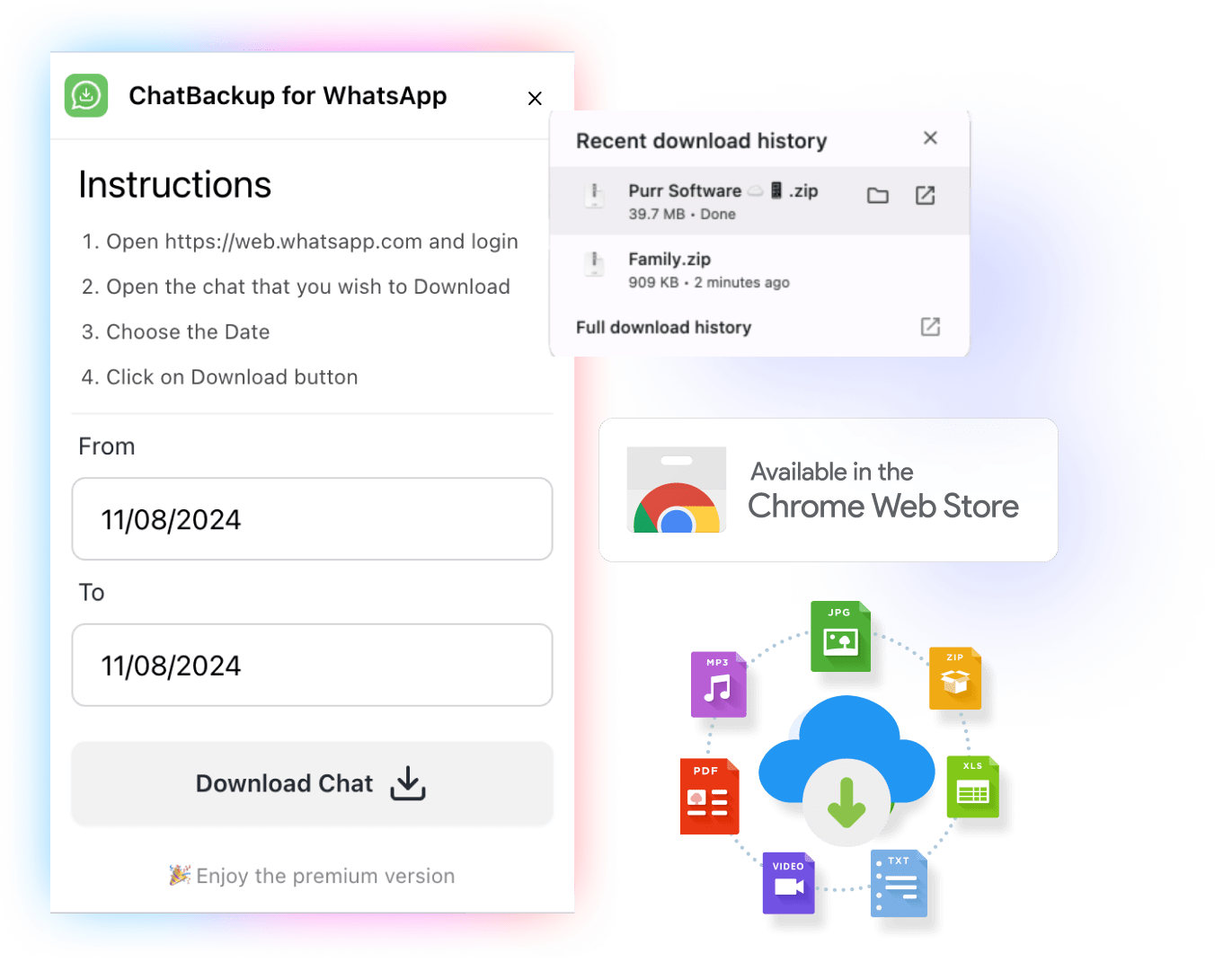
ChatBackup for WhatsAppChatBackup for WhatsApp is a Chrome extension that allows you to export WhatsApp chats directly from WhatsApp Web.
With ChatBackup you can:
- Export WhatsApp chats to CSV
- Download chats in Excel format
- Save conversations as HTML
- Export messages along with timestamps and sender information
- Export chats without complicated manual steps
This makes it easier to analyze conversations, archive data, or keep records.
Steps to Export WhatsApp Chat Using ChatBackup
-
Open WhatsApp Web
-
Open the conversation you want to export
-
Click the ChatBackup extension
-
Choose your preferred export format:
-
CSV
-
Excel
-
HTML
-
-
Download the chat file
The exported file can then be opened in Excel, Google Sheets, or a browser.
Things to Know Before Exporting WhatsApp Chats
Because the tool works with WhatsApp Web, it can only export:
- Messages currently accessible in the browser
- Media that WhatsApp Web loads
If older messages are not available in the browser session, they may not be included in the export.
This is a WhatsApp platform limitation, not a limitation of the extension itself.
Who Should Use This Tool?
ChatBackup is useful for:
- Business owners saving client conversations
- Researchers analyzing chat data
- Customer support teams
- People archiving personal chats
- Anyone who wants to download WhatsApp chat history easily
Final Thoughts
If you need to download WhatsApp chat or export WhatsApp chat from WhatsApp Web, using a dedicated tool like ChatBackup for WhatsApp can make the process simple and efficient.
While WhatsApp Web has some technical limitations, tools built specifically for exporting chats can help you save conversations in useful formats like CSV, Excel, and HTML for backup, analysis, or documentation.
 Add ChatBackup to Chrome now to get started